Overview
This guide walks you through:
- Enabling OAuth 2.0 for Incorta public APIs
- Enabling OAuth 2.0 for SQLx (JDBC) at the tenant level
- Connecting Incorta MCP as a custom connector in your AI client
Keep the authorization server base URL handy. You'll use it both in the CMC and when configuring your AI client.
Prerequisites
- Access to Incorta Cluster Management Console (CMC)
- A cluster with permissions to update API Security and tenant settings
- The OAuth 2.0 authorization server base URL provided by your admin
- Ability to restart the Incorta Analytics service
Part A — Configure your Cluster in CMC
Step 1 — Open the CMC
Launch the Incorta Cluster Management Console with your administrator credentials.
Step 2 — Select your Cluster
Choose the target cluster where you plan to enable OAuth 2.0 protections.
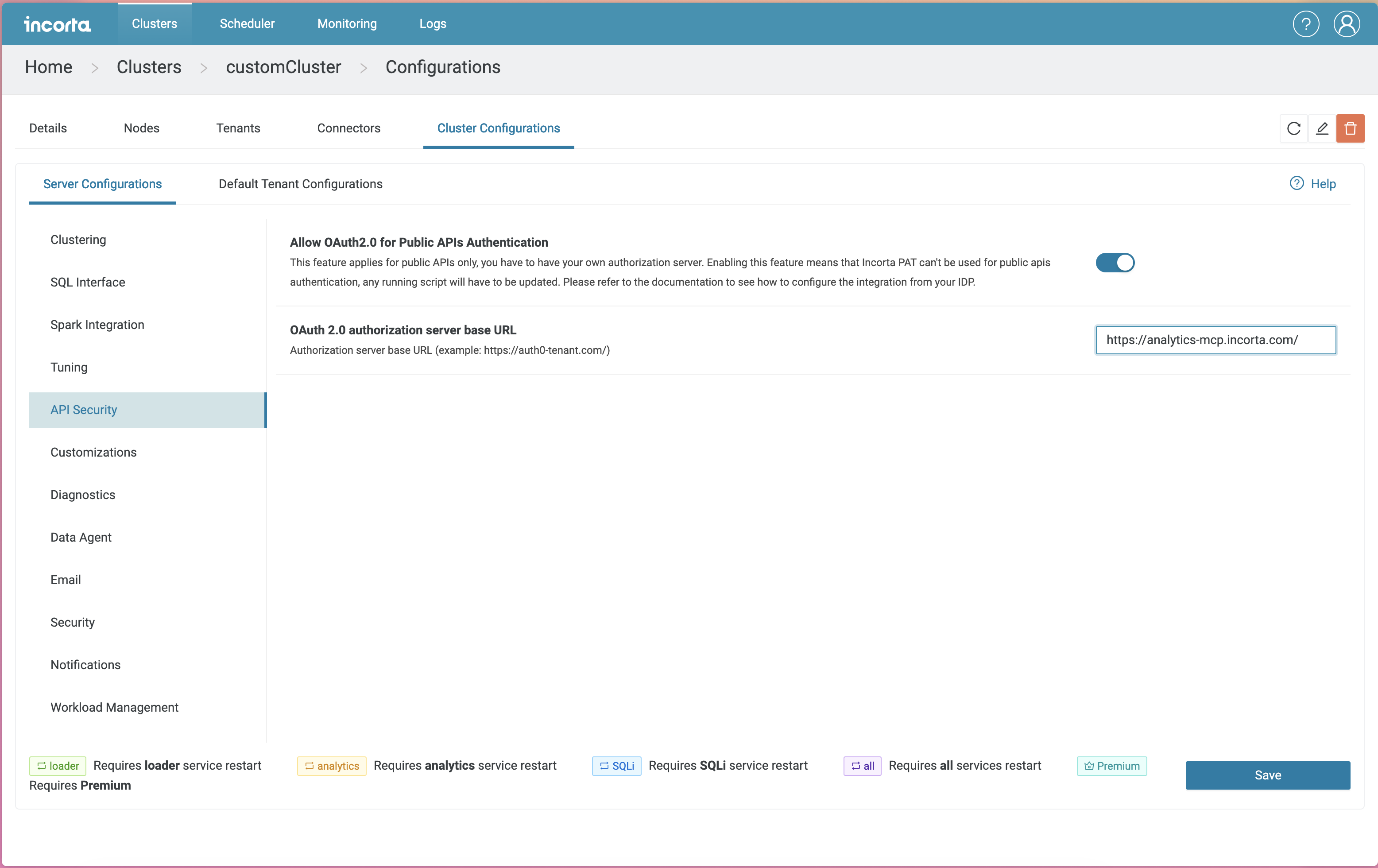
Step 3 — Enable API Security (OAuth 2.0 for public APIs)
- Navigate to Cluster Configurations.
- Select API Security.
- Enable Allow OAuth 2.0 for Public APIs Authentication.
- For OAuth 2.0 authorization server base URL, enter: https://analytics-mcp.incorta.com/
- Click Save.
Need a visual? Refer to the CMC screenshot illustrating API Security configuration.
Part B — Enable OAuth 2.0 for SQLx (JDBC)
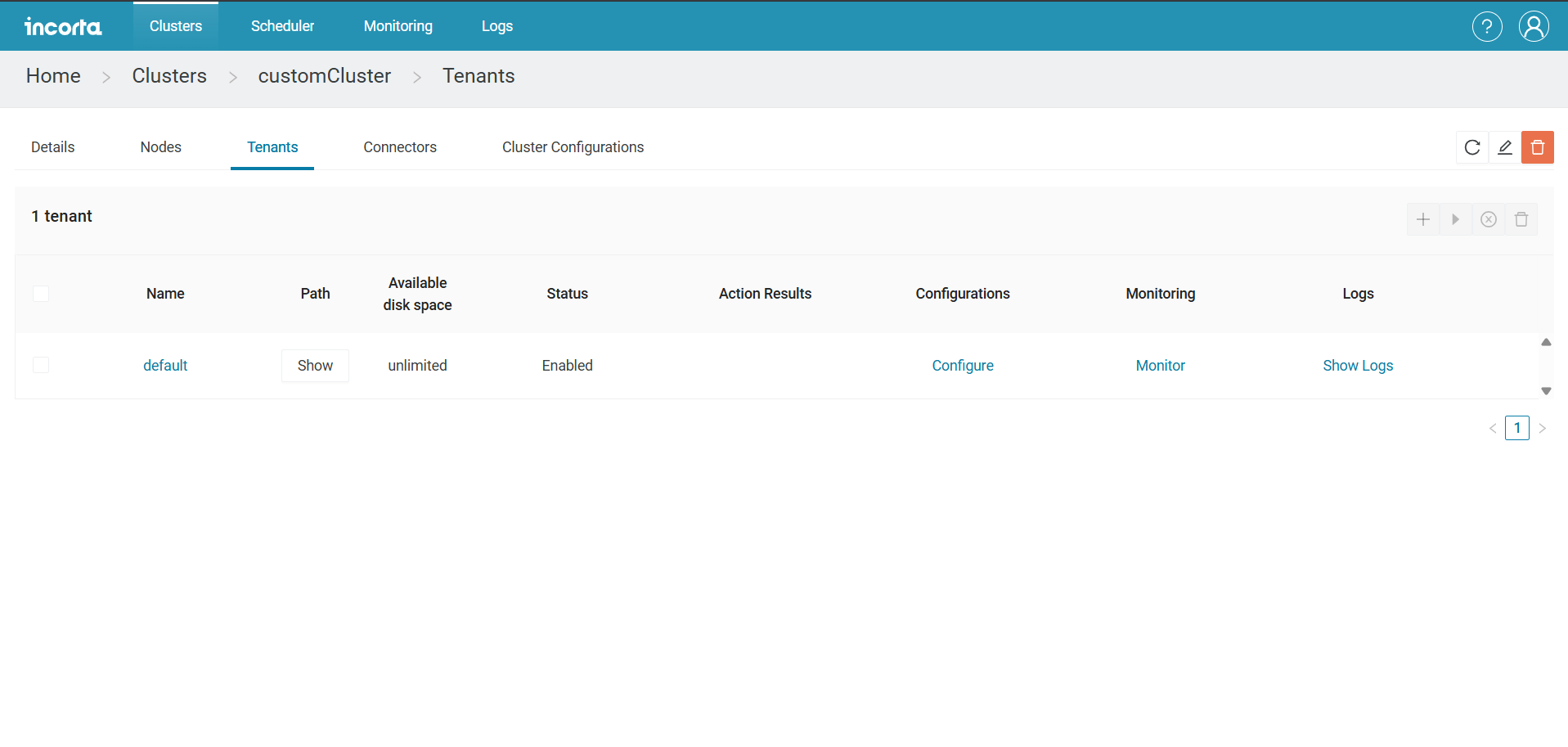
- Go to the Tenants tab.
- Click Configure for your tenant.
- Open Integration, then enable OAuth 2.0-based authentication for JDBC connection.
- Set OAuth 2.0 authorization server base URL to: https://analytics-mcp.incorta.com/
- Click Save.
- Restart your Analytics service to apply changes.
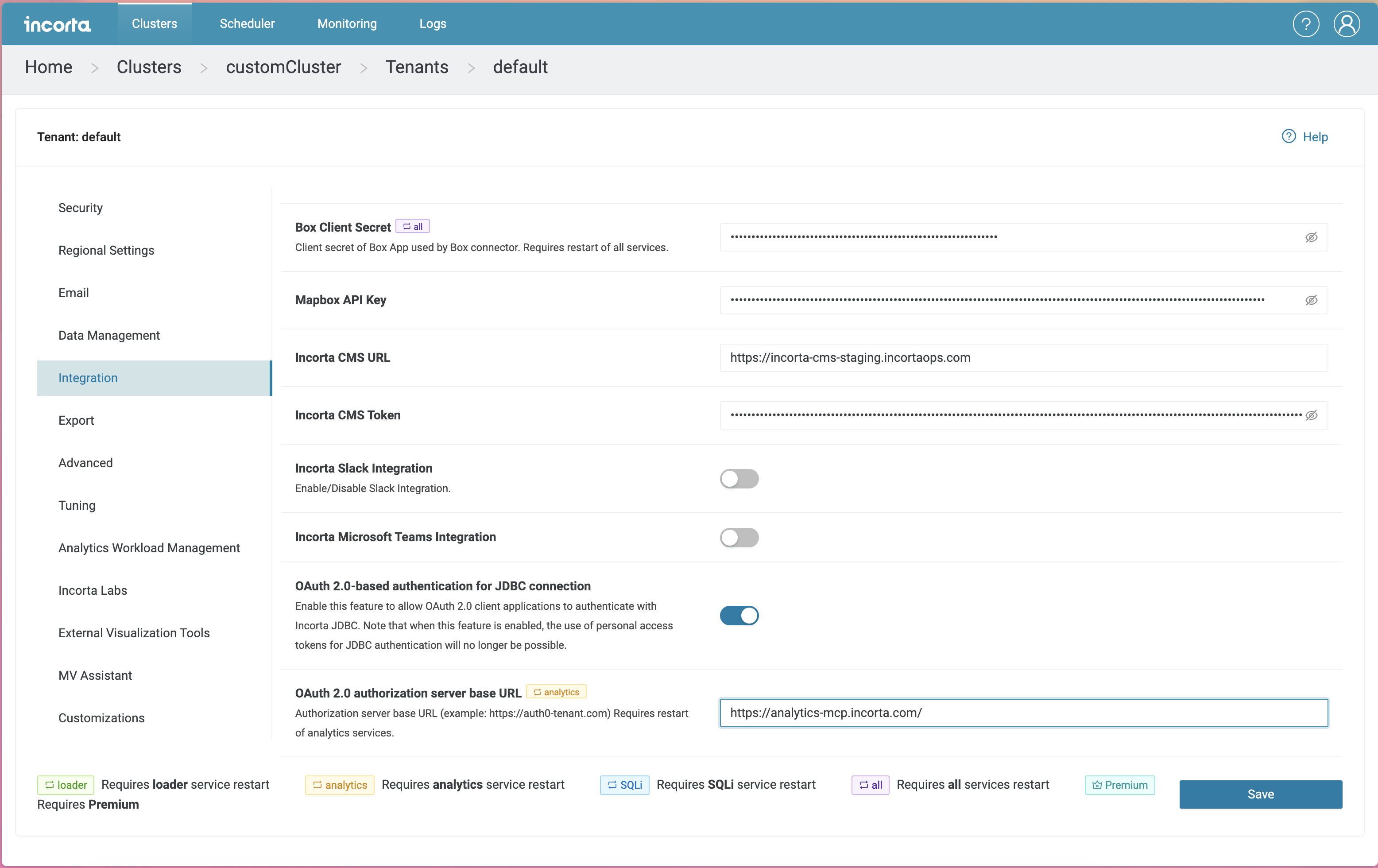
A restart is required for the JDBC OAuth setting to take effect.
Part C — Connect Incorta MCP in Claude
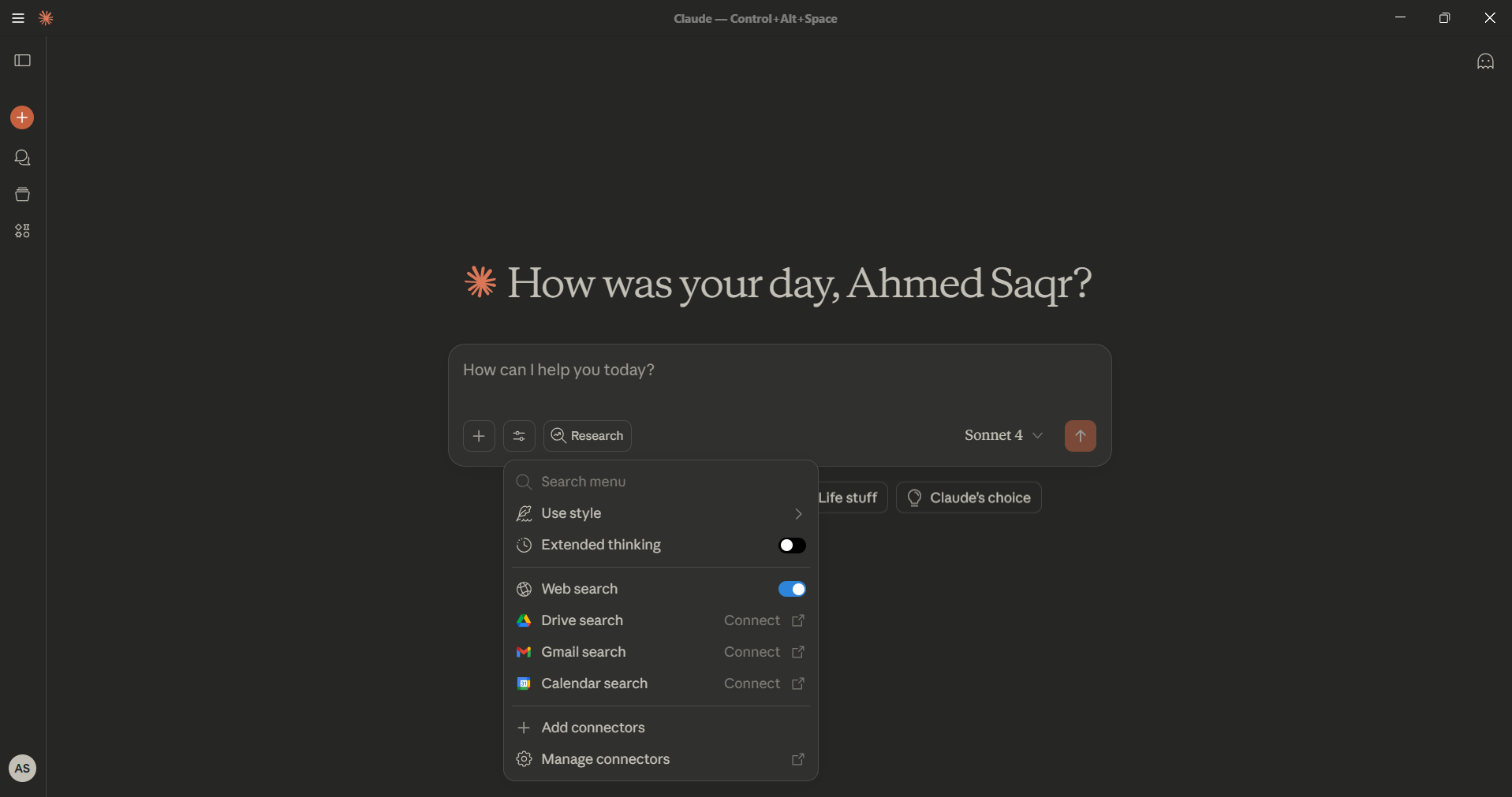
Step 1 — Open Claude settings
- Launch Claude.
- Select the Settings icon.
- Choose Manage connectors.
Step 2 — Add a Custom Connector
- Click Add Custom Connector.
- Use the following values:
- Name: Incorta MCP
- URL: https://analytics-mcp.incorta.com/mcp/
- Click Add.
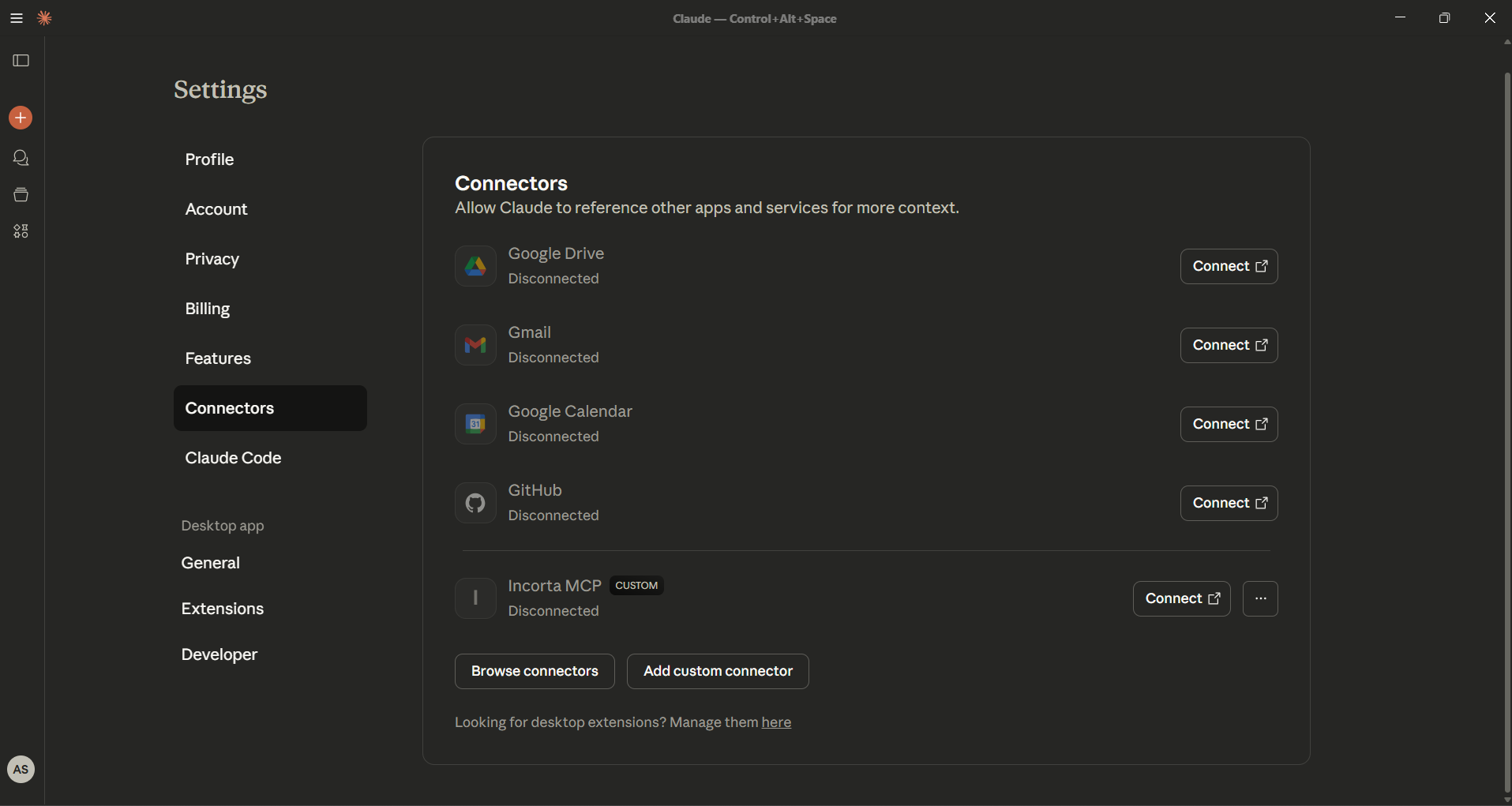
If the connector does not appear immediately, restart Claude and try again.
Step 3 — Connect
Once the connector is listed, click Connect to finalize the integration.
Login Information
When setting up your login credentials, ensure the following:
- Enter the full Incorta URL including the trailing
/incorta:https://<machine name>.cloudstaging.incortalabs.com/incorta - Specify your correct tenant name
- Provide the complete SQLx connection string
Troubleshooting
- If OAuth authentication fails, verify the authorization server base URL matches in both CMC API Security and tenant JDBC settings.
- Ensure the Analytics service has been restarted after enabling JDBC OAuth.
- Confirm network access from your cluster and from your AI client to the authorization server URL.
Revision history
Reformatted and clarified steps. Fixed typos and made URLs consistent. Added prerequisites and troubleshooting sections.